Image EmbossApply an emboss effect to create a raised, 3D relief appearance.
Image Emboss
Apply an emboss effect to create a raised, 3D relief appearance.
Upload Image
Drop or select an image to emboss.
Adjust Intensity
Control emboss strength.
Apply and Download
Click Apply, preview, and download.
What Is Image Emboss?
Image embossing creates a 3D raised relief effect using a directional convolution kernel that highlights edges based on direction, with a 128 bias for a neutral gray background.
Why Use Our Image Emboss?
- Realistic 3D relief effect
- Adjustable intensity
- Directional light simulation
- Classic artistic effect
Common Use Cases
Artistic Effects
Create metallic, carved artwork.
Texture Analysis
Reveal surface patterns.
Design Elements
Embossed textures for backgrounds.
Logo Effects
Embossed logos for premium look.
Technical Guide
Uses kernel [-2,-1,0,-1,1,1,0,1,2] scaled by intensity, with 128 bias. Creates highlights where brightness increases in the emboss direction.
Tips & Best Practices
- 150-70% for natural emboss
- 2Works best on images with clear edges
- 3Convert to grayscale first for stone/metal look
- 4High contrast improves results
Related Tools
Image Edge Detect
Detect and highlight edges using Sobel operator convolution.
 Image Tools
Image Sharpen
Sharpen images with adjustable intensity using unsharp mask convolution.
Image Tools

Image to Grayscale
Convert color images to grayscale (black and white) with adjustable intensity.
Image Tools
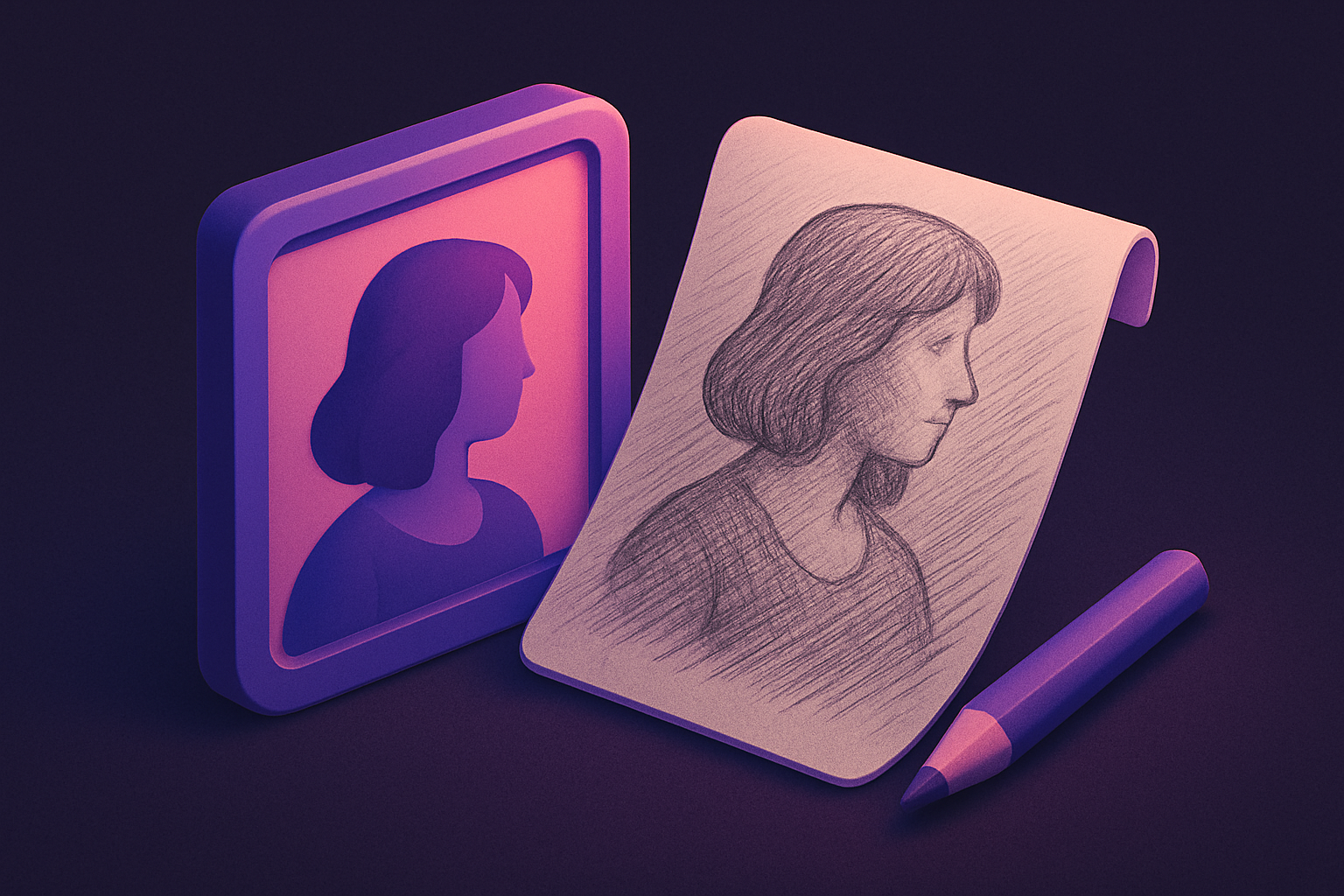
Image Pencil Sketch
Convert photos into pencil sketch drawings.
Image Tools
Image Resizer
Resize images by exact pixel dimensions or percentage while maintaining aspect ratio.
Image Tools
Image Crop
Crop images with a visual selection rectangle to remove unwanted areas.
Image ToolsFrequently Asked Questions
QWhy is the result gray?
QCan I change light direction?
QPreserves colors?
QBest images?
About Image Emboss
Image Emboss is a free online tool from FreeToolkit.ai. All processing happens directly in your browser — your data never leaves your device. No registration required. No ads. Just fast, reliable tools.