
Picture-in-Picture VideoCreate picture-in-picture videos with one video overlaid on another.
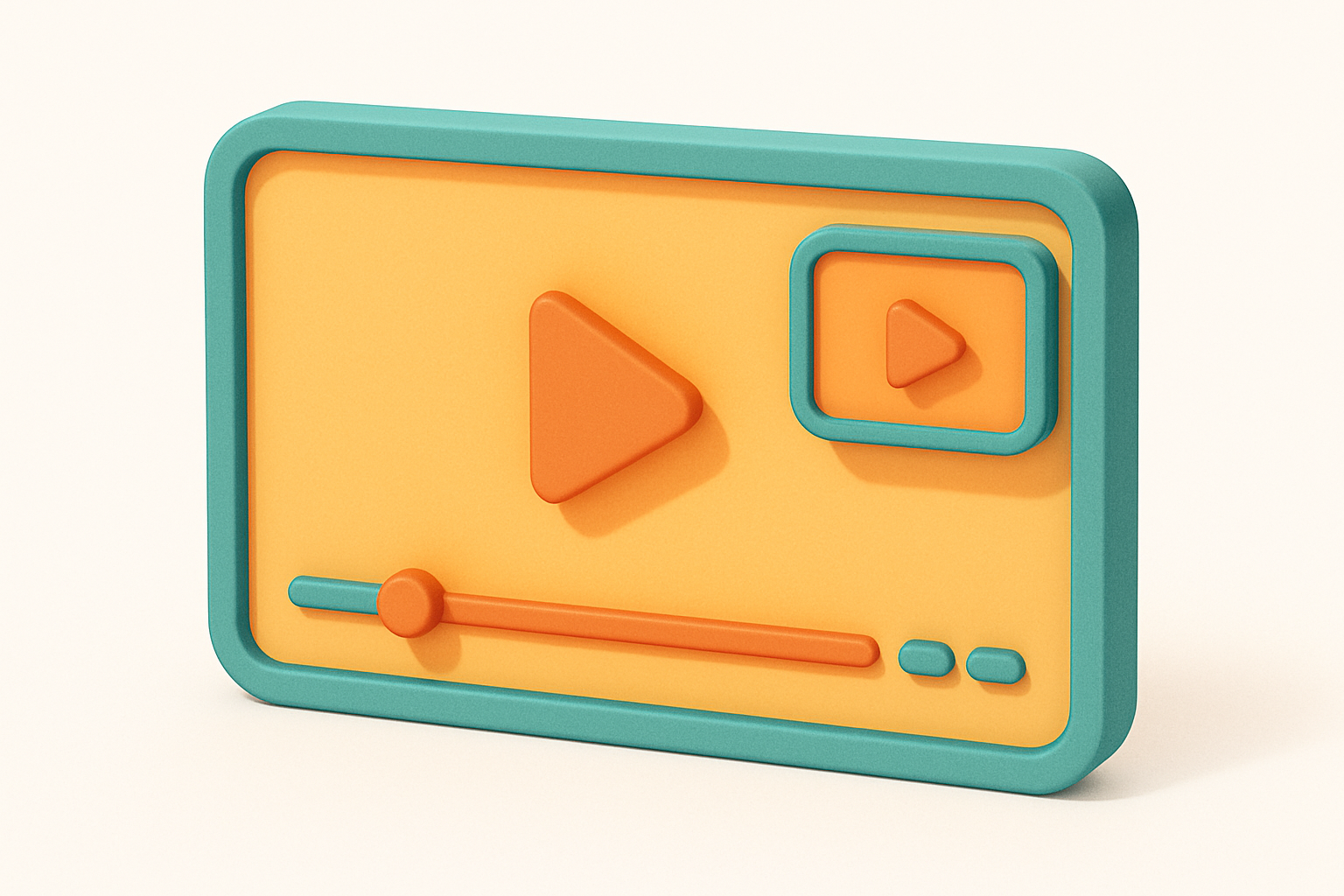

Picture-in-Picture Video
Create picture-in-picture videos with one video overlaid on another.
Upload Videos
Upload the main video and the overlay (PiP) video.
Position PiP
Choose the corner and size for the overlay video.
Create & Download
Click Create and download your PiP video.
What Is Picture-in-Picture Video?
The Picture-in-Picture (PiP) Video Maker is a free browser-based tool that overlays one video on top of another, creating a picture-in-picture effect. Upload a main video and a smaller overlay video, then choose the position and size for the overlay. The overlay typically appears in a corner of the main video. It's perfect for reaction videos, gaming commentary, tutorials with webcam overlay, and multi-angle presentations. Both videos play simultaneously and are composited onto a single Canvas for recording. All processing happens locally in your browser.
Why Use Our Picture-in-Picture Video?
- Create professional PiP layouts with any two videos
- Customizable overlay position and size
- No uploads — all processing on your device
- No software installation or watermarks
Common Use Cases
Reaction Videos
Overlay your webcam reaction on the content you're reacting to.
Gaming Commentary
Add a facecam overlay to gameplay recordings.
Tutorial Videos
Show your webcam alongside screen recordings for tutorials.
Presentations
Overlay speaker video on presentation slides.
Technical Guide
The PiP Video Maker loads two video files into separate HTML5 Video elements. A Canvas is created at the main video's dimensions. During playback, requestAnimationFrame draws the main video as the full canvas background, then draws the overlay video at the specified position and size using drawImage() with destination coordinates. Both videos play simultaneously. Audio mixing uses Web Audio API — both video audio sources are connected through GainNodes to a MediaStreamDestination, allowing volume control for each. The combined canvas stream and mixed audio stream are fed to MediaRecorder. The overlay can have a border (drawn via strokeRect) and rounded corners (via clip path). Position presets calculate corner coordinates with configurable padding.
Tips & Best Practices
- 1The overlay video is typically 20-30% of the main video size
- 2Place the PiP window in a corner with minimal important content
- 3Both videos should be similar in duration for best results
- 4Adjust audio volumes so one track doesn't overpower the other
Related Tools
Side-by-Side Video
Place two videos side by side in a single frame.
 Video Tools

Video Watermark
Add image or text watermarks to protect your video content.
Video Tools

Video Text Overlay
Add text, titles, and captions to your videos.
Video Tools
Video Merger
Merge multiple video clips into a single video file in your browser.
Video Tools
MP4 to WebM Converter
Convert MP4 video files to WebM format directly in your browser.
Video Tools
WebM to MP4 Converter
Convert WebM video files to MP4 format directly in your browser.
Video ToolsFrequently Asked Questions
QCan I adjust the overlay size?
QWhere can I position the overlay?
QIs audio from both videos included?
QIs it private?
QWhat if the videos are different lengths?
About Picture-in-Picture Video
Picture-in-Picture Video is a free online tool from FreeToolkit.ai. All processing happens directly in your browser — your data never leaves your device. No registration required. No ads. Just fast, reliable tools.