
Audio Fade In/OutAdd fade-in and fade-out effects to audio files.
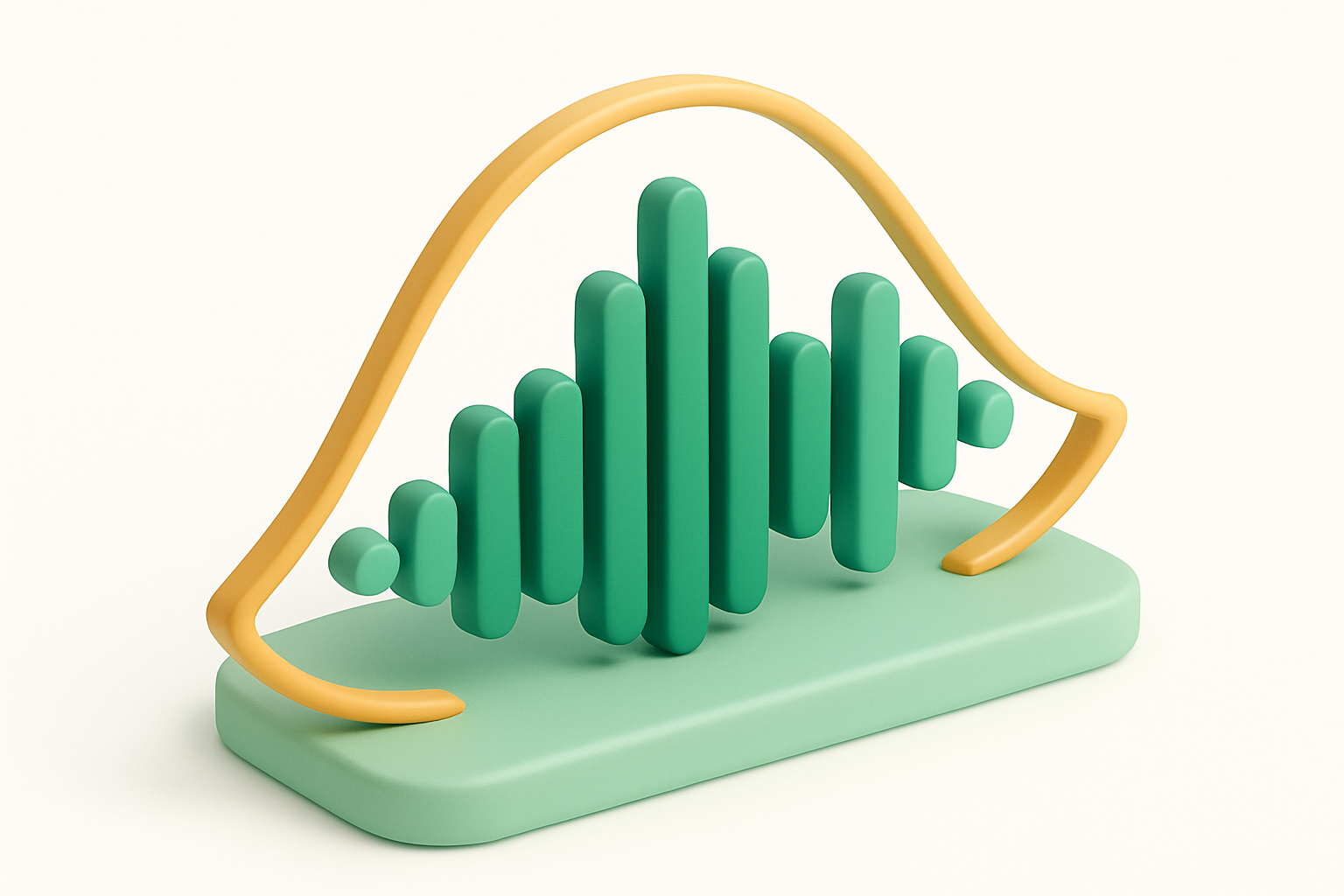

Audio Fade In/Out
Add fade-in and fade-out effects to audio files.
Upload Audio
Drop your audio file or click to browse.
Set Fade Durations
Configure the fade-in and fade-out lengths in seconds.
Download
Download your audio with smooth fade effects applied.
What Is Audio Fade In/Out?
The Audio Fade tool adds smooth fade-in and fade-out effects to your audio files. A fade-in gradually increases volume from silence at the beginning, while a fade-out gradually decreases volume to silence at the end. This is essential for professional-sounding audio that doesn't start or end abruptly. Configure independent fade-in and fade-out durations, choose from different fade curves (linear, exponential, logarithmic), preview the result, and download. Uses the Web Audio API's GainNode with automated parameter scheduling for smooth, glitch-free fades.
Why Use Our Audio Fade In/Out?
- Multiple fade curve types (linear, exponential, logarithmic)
- Independent control of fade-in and fade-out durations
- Preview the fades before downloading
- Client-side processing — completely private
Common Use Cases
Music Editing
Add professional fades to songs for DJ sets or compilations.
Podcast Production
Smooth intro and outro transitions for podcast episodes.
Presentations
Create smooth audio transitions for presentation background music.
Ringtones
Add fade-out to ringtone clips so they don't end abruptly.
Technical Guide
The fade effect uses the Web Audio API's GainNode with AudioParam automation. The audio is decoded into an AudioBuffer and processed through an OfflineAudioContext. A GainNode is inserted in the signal chain, and its gain parameter is scheduled using linearRampToValueAtTime() for linear fades, exponentialRampToValueAtTime() for exponential fades (using a small epsilon instead of 0), or setValueCurveAtTime() for custom logarithmic curves. The fade-in ramps from near-zero to 1.0 over the specified duration from the start. The fade-out ramps from 1.0 to near-zero over the specified duration ending at the file's end. The OfflineAudioContext renders the complete audio with fades applied, and the output is encoded as a WAV file.
Tips & Best Practices
- 1Exponential fades sound more natural than linear fades for most audio
- 21-3 seconds is typical for music fades; 0.5-1 second for speech
- 3Fade-out is more commonly needed than fade-in for most audio clips
- 4Combine with the Audio Trimmer to first trim, then add fades
Related Tools

Audio Trimmer
Trim and cut audio files to the exact duration you need.
 Audio Tools

Audio Volume Changer
Increase or decrease the volume of any audio file.
Audio Tools
Audio Merger
Merge and concatenate multiple audio files into a single file.
Audio Tools
Audio Normalizer
Normalize audio volume to a consistent level automatically.
Audio Tools
MP3 to WAV Converter
Convert MP3 audio files to WAV format instantly in your browser.
Audio Tools

WAV to MP3 Converter
Convert WAV audio files to compressed MP3 format in your browser.
Audio ToolsFrequently Asked Questions
QWhat fade curve types are available?
QCan I add only fade-in without fade-out?
QWhat's the maximum fade duration?
QWhich fade curve sounds most natural?
QIs processing done locally?
About Audio Fade In/Out
Audio Fade In/Out is a free online tool from FreeToolkit.ai. All processing happens directly in your browser — your data never leaves your device. No registration required. No ads. Just fast, reliable tools.