Video CropperCrop videos to remove unwanted areas and change aspect ratios.


Video Cropper
Crop videos to remove unwanted areas and change aspect ratios.
Upload Video
Drag and drop your video file or click to browse.
Select Crop Area
Drag the crop region or choose a preset aspect ratio.
Crop & Download
Click Crop and download your cropped video.
What Is Video Cropper?
The Video Cropper is a free browser-based tool that lets you crop videos to remove unwanted areas or change aspect ratios. Select a crop region visually, choose preset ratios (16:9, 9:16, 1:1, 4:3), or enter custom dimensions. Preview the cropped result in real-time before processing. Perfect for adapting videos to different social media platform requirements — make landscape videos square for Instagram, vertical for TikTok/Reels, or wide for YouTube. The tool uses Canvas for preview and rendering, with MediaRecorder for output. All processing happens locally on your device.
Why Use Our Video Cropper?
- Visual crop selection with real-time preview
- Preset aspect ratios for social media platforms
- No uploads — complete privacy on your device
- No watermarks or software installation needed
Common Use Cases
Social Media Formatting
Crop landscape videos to square (1:1) for Instagram or vertical (9:16) for TikTok.
Remove Borders
Crop out black bars, letterboxing, or unwanted border areas.
Focus Reframing
Crop to focus on the important part of the frame.
Aspect Ratio Change
Convert between 16:9, 4:3, 1:1, and other aspect ratios.
Technical Guide
The Video Cropper uses the HTML5 Video element for playback and a Canvas overlay for the crop selection UI. The crop region is defined by x, y, width, and height coordinates relative to the video's native resolution. During processing, the video plays while each frame is drawn onto a Canvas using drawImage() with source and destination parameters that extract only the cropped region. The Canvas is sized to the crop dimensions, so the output matches the selected area exactly. The cropped canvas stream and audio (via Web Audio API) are fed to MediaRecorder for encoding. Preset aspect ratios are calculated based on the video's dimensions to provide commonly needed crop sizes.
Tips & Best Practices
- 1Use preset aspect ratios for quick social media formatting
- 2Preview the crop before processing to ensure the right area is selected
- 3Cropping reduces resolution — avoid cropping very small areas from low-res videos
- 4For TikTok/Reels, use the 9:16 vertical preset
Related Tools
Video Resizer
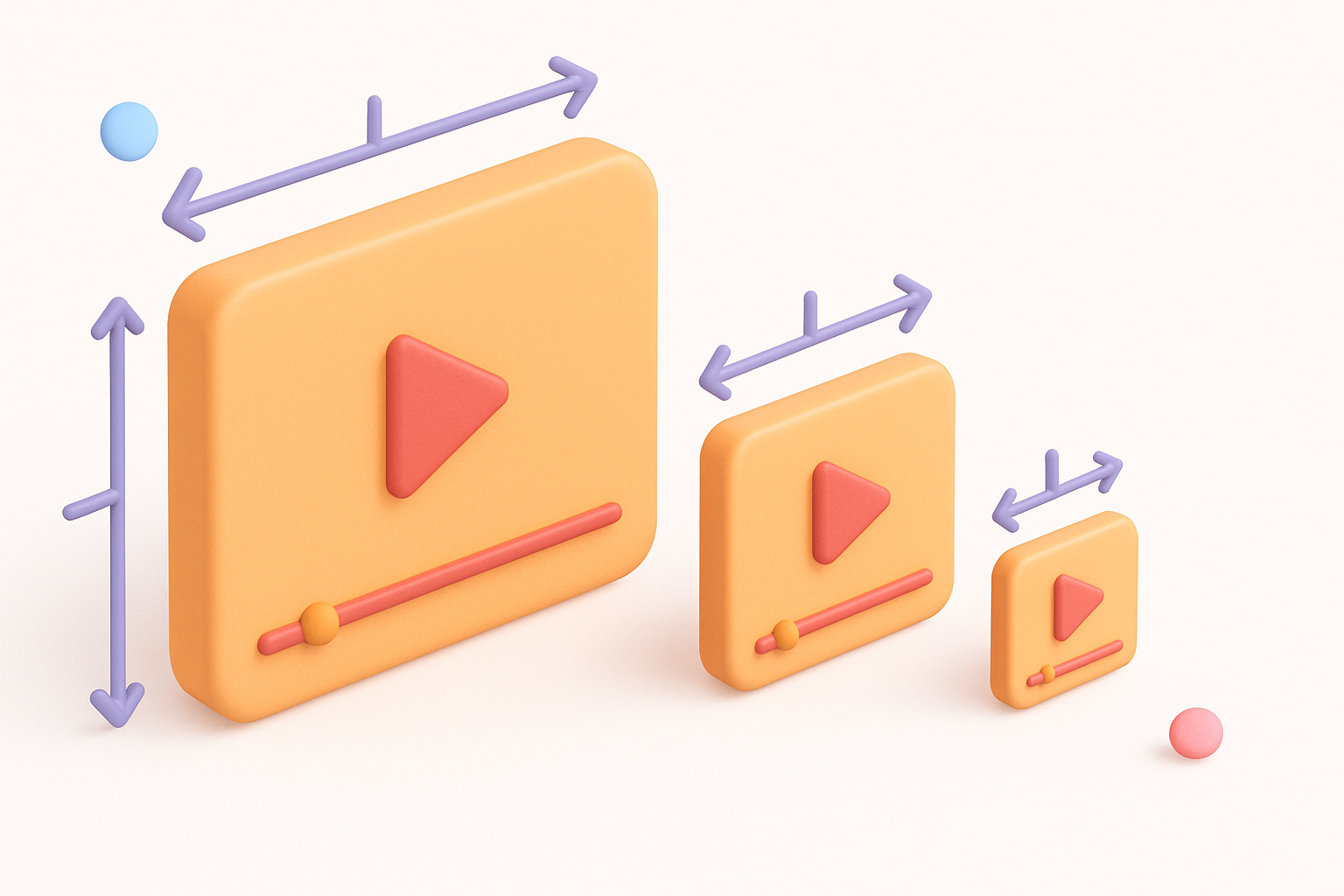
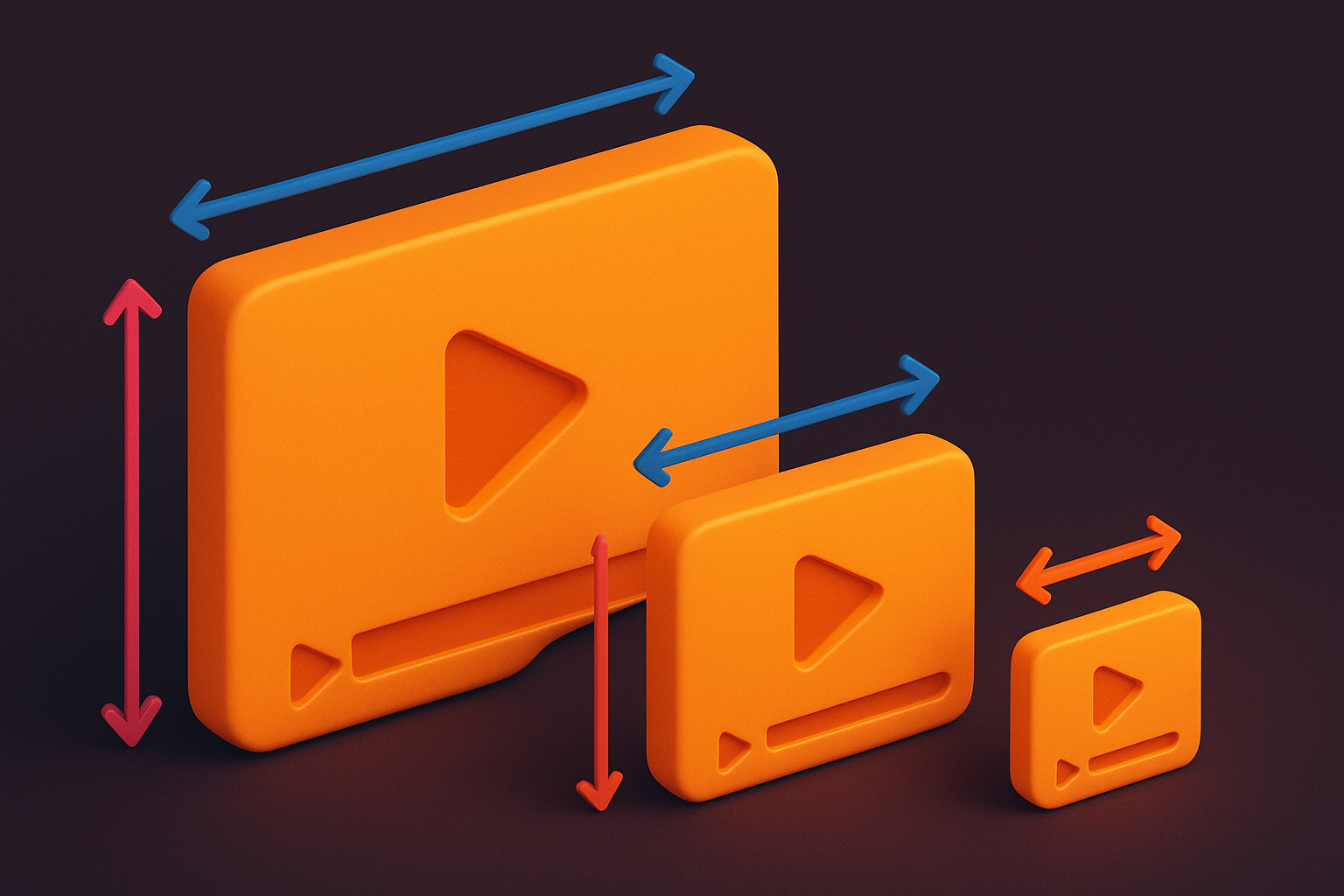
Resize videos to any resolution or dimension in your browser.
 Video Tools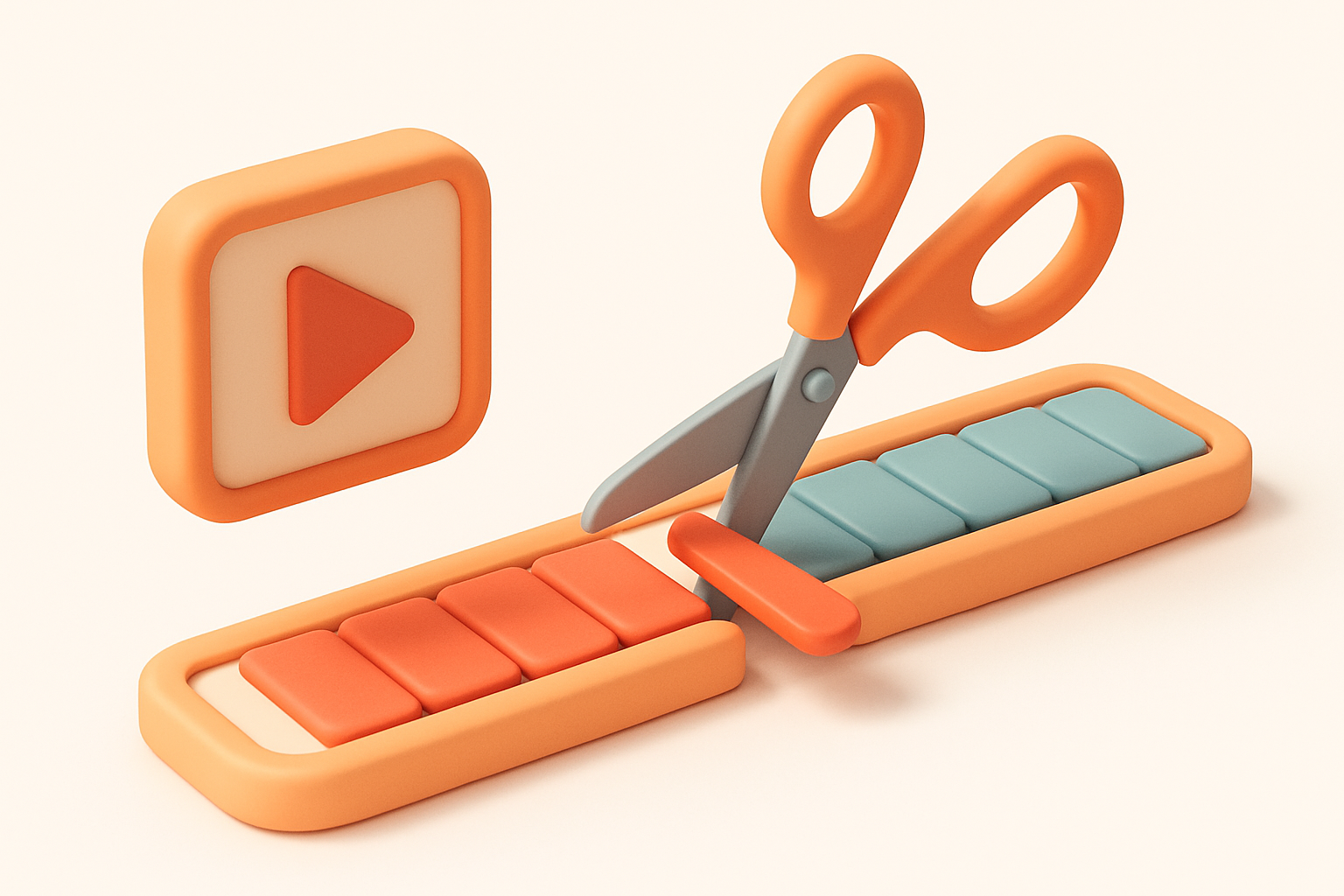
Video Trimmer
Trim and cut video clips to the exact length you need in your browser.
Video Tools
Video Rotator
Rotate videos by 90, 180, or 270 degrees in your browser.
Video Tools
Video Compressor
Compress video files to reduce file size while maintaining quality.
Video Tools
MP4 to WebM Converter
Convert MP4 video files to WebM format directly in your browser.
Video Tools
WebM to MP4 Converter
Convert WebM video files to MP4 format directly in your browser.
Video ToolsFrequently Asked Questions
QDoes cropping reduce quality?
QWhat aspect ratios are available?
QIs it private?
QCan I crop and trim at the same time?
QDoes it preserve audio?
About Video Cropper
Video Cropper is a free online tool from FreeToolkit.ai. All processing happens directly in your browser — your data never leaves your device. No registration required. No ads. Just fast, reliable tools.