Image SharpenSharpen images with adjustable intensity using unsharp mask convolution.
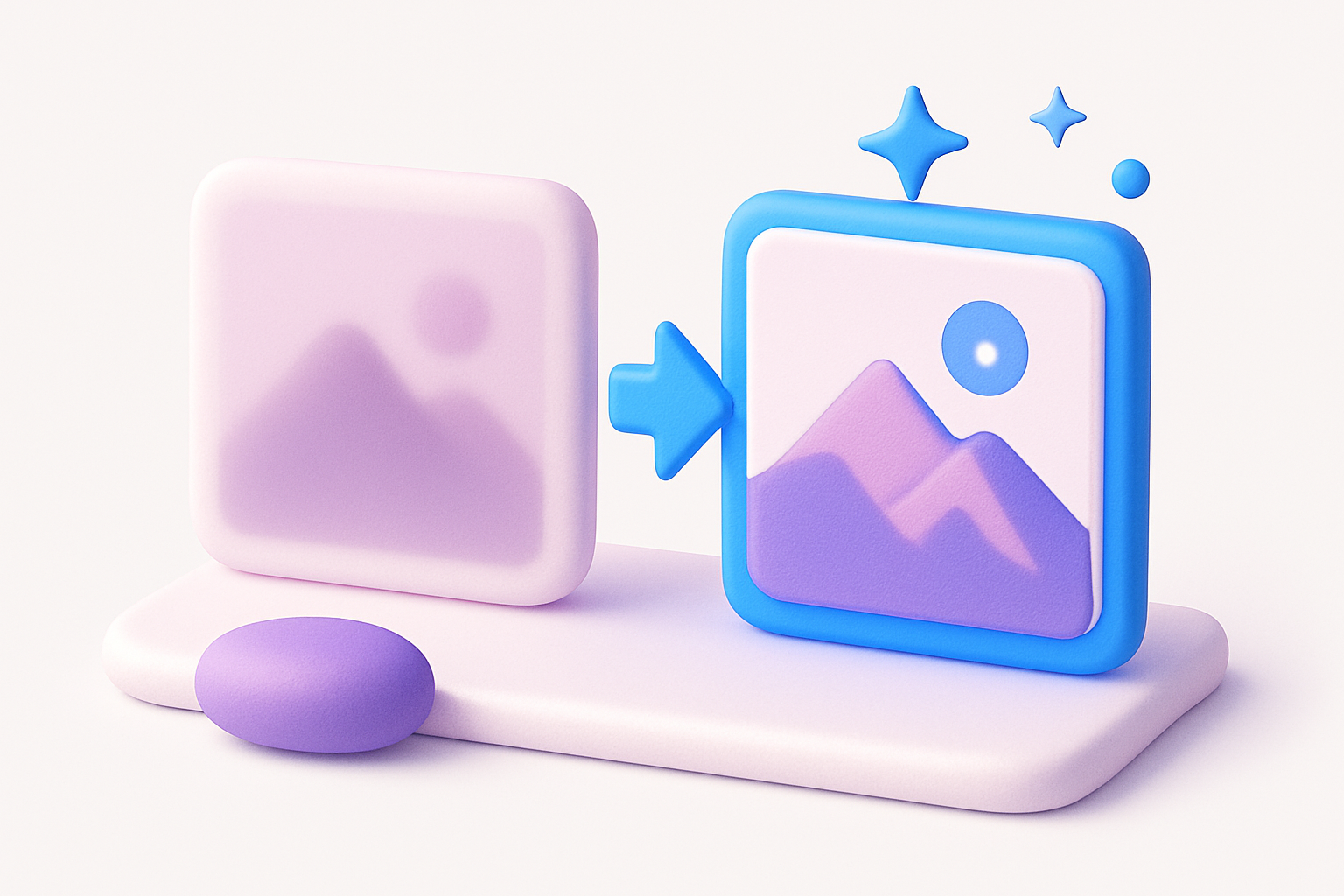
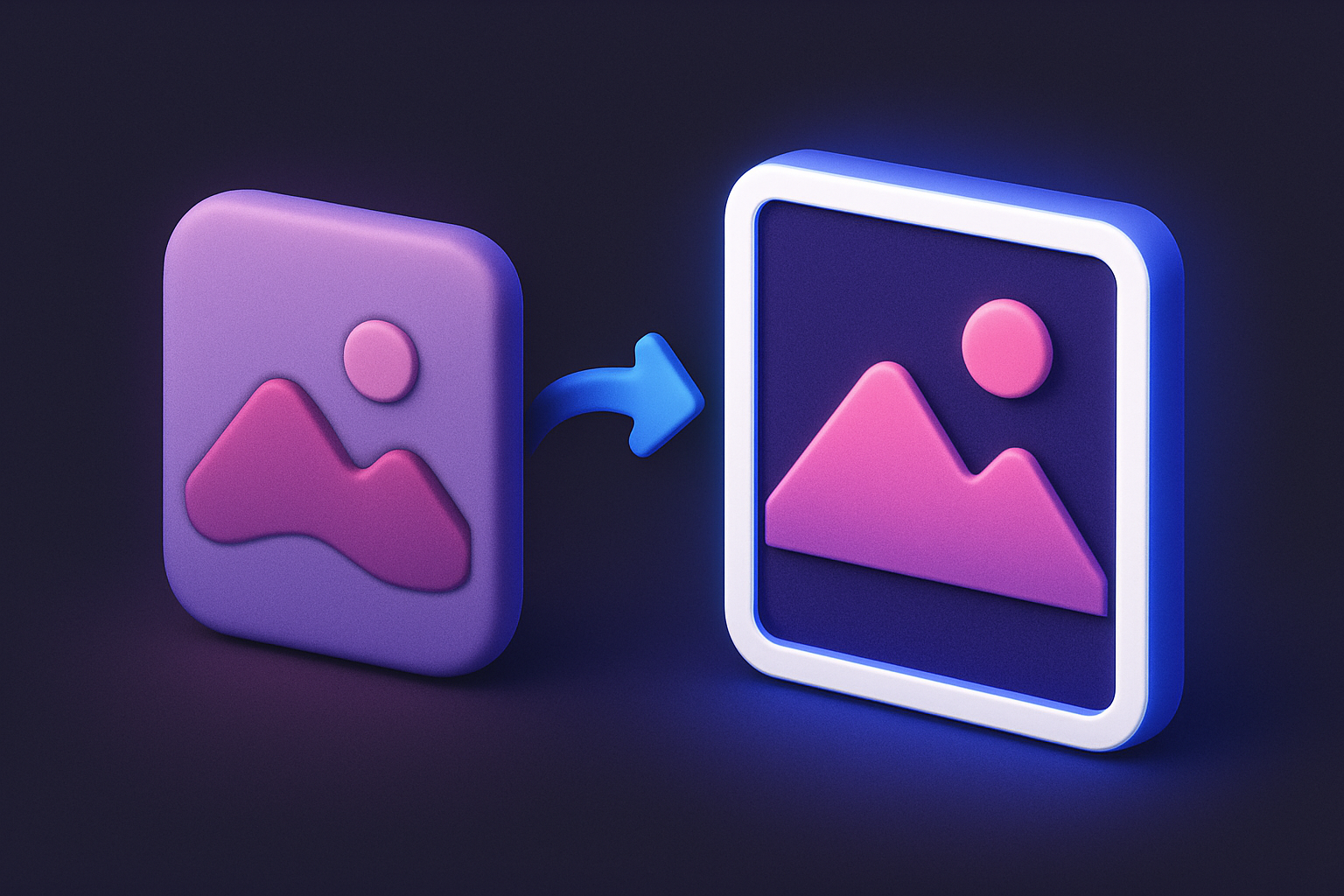
Image Sharpen
Sharpen images with adjustable intensity using unsharp mask convolution.
Upload Your Image
Drop or select an image to sharpen.
Adjust Sharpness
Use the slider to control sharpening intensity from subtle to aggressive.
Apply and Download
Click Apply, preview the sharpened result, and download.
What Is Image Sharpen?
Image sharpening enhances edges and fine details by applying a convolution kernel that amplifies differences between neighboring pixels. The sharpen kernel increases contrast at edges making the image appear crisper. This tool uses a 3x3 sharpening kernel with adjustable intensity, blending between the original and sharpened result.
Why Use Our Image Sharpen?
- Adjustable sharpening intensity from subtle to aggressive
- 3x3 convolution kernel for precise edge enhancement
- Blend control between original and sharpened image
- Client-side Canvas API processing for instant results
Common Use Cases
Fix Soft Photos
Rescue slightly out-of-focus or soft images by enhancing edges.
Print Preparation
Sharpen images before printing to ensure crisp output.
Detail Enhancement
Bring out fine textures in macro photography or product shots.
Post-Resize Sharpening
Apply sharpening after resizing to compensate for interpolation softness.
Technical Guide
Sharpening uses a 3x3 convolution kernel: [0, -t, 0, -t, 1+4t, -t, 0, -t, 0] where t is the sharpening strength. As t increases, the center weight increases while neighbor weights become more negative, amplifying edge differences.
Tips & Best Practices
- 1Use moderate sharpening (20-40%) for natural-looking results
- 2Over-sharpening creates visible halos around edges
- 3Sharpen as the last step in your editing workflow
- 4Noisy images should be denoised before sharpening
Related Tools
Image Blur
Apply box blur to soften images with adjustable radius control.
 Image Tools
Image Noise Reduce
Reduce noise and grain in images using median filtering.
Image Tools
Image Contrast
Adjust image contrast to enhance or reduce the difference between light and dark areas.
Image Tools
Image Emboss
Apply an emboss effect to create a raised, 3D relief appearance.
Image Tools
Image Resizer
Resize images by exact pixel dimensions or percentage while maintaining aspect ratio.
Image Tools
Image Crop
Crop images with a visual selection rectangle to remove unwanted areas.
Image ToolsFrequently Asked Questions
QCan sharpening fix a very blurry image?
QWhat causes halo artifacts?
QShould I sharpen before or after resizing?
QDoes sharpening add noise?
About Image Sharpen
Image Sharpen is a free online tool from FreeToolkit.ai. All processing happens directly in your browser — your data never leaves your device. No registration required. No ads. Just fast, reliable tools.