Video Text OverlayAdd text, titles, and captions to your videos.


Video Text Overlay
Add text, titles, and captions to your videos.
Upload Video
Drag and drop your video file or click to browse.
Add Text
Enter your text, choose font, size, color, and position.
Apply & Download
Click Apply and download your video with text overlay.
What Is Video Text Overlay?
The Video Text Overlay tool is a free browser-based tool that adds text to your videos. Type your text, customize the font, size, color, and position, then overlay it on your video. The text appears throughout the entire video or for a specified duration. It's perfect for adding titles, lower thirds, watermarks, captions, or informational text to video content. The tool uses Canvas text rendering for sharp, customizable text on each frame. All processing happens locally in your browser — no files are uploaded to any server.
Why Use Our Video Text Overlay?
- Customizable font, size, color, and position
- Sharp text rendering via Canvas API
- No uploads — private client-side processing
- No watermarks or software installation needed
Common Use Cases
Video Titles
Add title screens and headings to your video content.
Watermarking
Add text watermarks to protect your video content.
Social Media
Add captions, hashtags, or call-to-action text to social media videos.
Educational Content
Add labels, annotations, and informational text to tutorial videos.
Technical Guide
The Video Text Overlay tool renders text on each video frame using the Canvas 2D context's fillText() and strokeText() methods. Text properties (font family, size, weight, color, alignment) are set via Canvas context properties. Position is calculated based on the user's selection (top, center, bottom, or custom coordinates). For text with a background, a filled rectangle is drawn behind the text using measureText() for accurate sizing. During processing, each video frame is first drawn onto the Canvas, then the text is rendered on top. The composite frame is captured by MediaRecorder. Text shadow and outline effects are achieved using strokeText() with a contrasting color drawn before fillText() for readability.
Tips & Best Practices
- 1Use a text outline or shadow for readability over varied backgrounds
- 2Position text away from edges for clean framing
- 3Keep text concise — long text may be hard to read on video
- 4Use contrasting colors for maximum readability
Related Tools


Video Watermark
Add image or text watermarks to protect your video content.
 Video Tools

Video Cropper
Crop videos to remove unwanted areas and change aspect ratios.
Video Tools
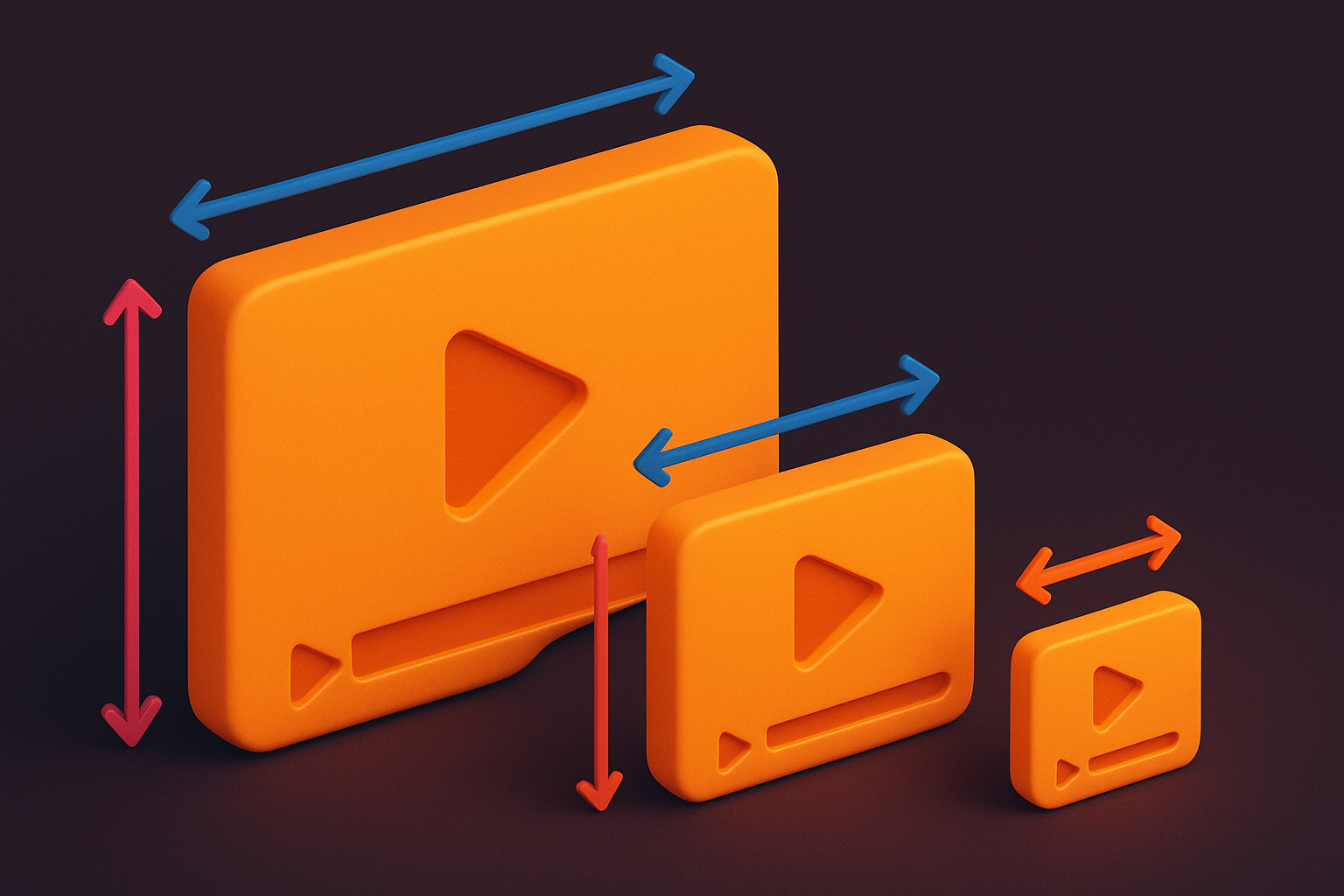
Video Resizer
Resize videos to any resolution or dimension in your browser.
Video Tools

Video Trimmer
Trim and cut video clips to the exact length you need in your browser.
Video Tools
MP4 to WebM Converter
Convert MP4 video files to WebM format directly in your browser.
Video Tools

WebM to MP4 Converter
Convert WebM video files to MP4 format directly in your browser.
Video ToolsFrequently Asked Questions
QCan I customize the font?
QCan I position text anywhere?
QDoes text appear throughout the whole video?
QIs it private?
QCan I add multiple text elements?
About Video Text Overlay
Video Text Overlay is a free online tool from FreeToolkit.ai. All processing happens directly in your browser — your data never leaves your device. No registration required. No ads. Just fast, reliable tools.