Video Color GradingAdjust brightness, contrast, saturation, and color of video files.

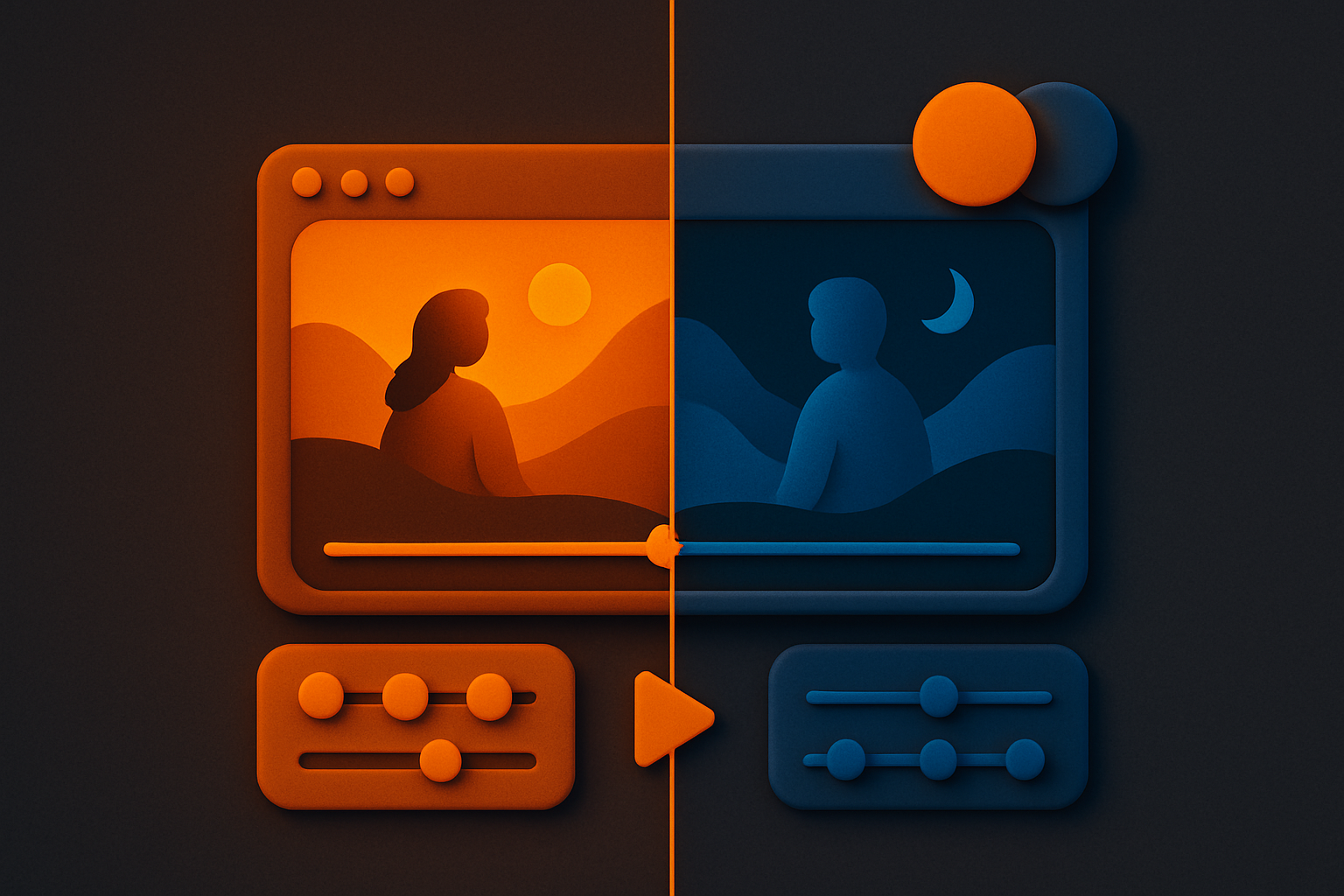
Video Color Grading
Adjust brightness, contrast, saturation, and color of video files.
Upload Video
Drag and drop your video file or click to browse.
Adjust Colors
Tune brightness, contrast, saturation, and hue settings.
Apply & Download
Click Apply and download your color-graded video.
What Is Video Color Grading?
The Video Color Grading tool is a free browser-based color editor for videos. Adjust brightness, contrast, saturation, hue, and temperature to achieve the look you want. Preview changes in real-time before processing. Create warm, cool, vintage, or cinematic looks with intuitive sliders. The tool applies CSS filters and Canvas pixel manipulation to transform your video's color characteristics. It's perfect for correcting exposure, enhancing colors, or creating artistic color grades. All processing happens locally in your browser — no files are uploaded to any server.
Why Use Our Video Color Grading?
- Real-time preview of all color adjustments
- Multiple parameters: brightness, contrast, saturation, hue
- No uploads — private client-side processing
- Create cinematic, vintage, or custom color looks
Common Use Cases
Color Correction
Fix underexposed, overexposed, or color-cast issues in videos.
Cinematic Look
Create film-like color grades with adjusted contrast and saturation.
Vintage Effect
Apply warm, faded color grades for a retro or vintage aesthetic.
Brand Consistency
Apply consistent color grading across multiple video clips.
Technical Guide
The Video Color Grading tool applies CSS filter functions to the Canvas context using ctx.filter. Brightness, contrast, and saturation are applied via their respective CSS filter functions (brightness(), contrast(), saturate()). Hue rotation uses hue-rotate(). For the preview, the video element itself uses CSS filters for instant visual feedback. During processing, each frame is drawn onto the Canvas with the filter string applied, then captured via MediaRecorder. For more advanced pixel-level adjustments (like individual color channel manipulation or curves), the tool uses getImageData() to access raw pixel data, applies mathematical transformations to RGB values, and puts the modified data back with putImageData(). Temperature adjustments modify the red and blue channels independently.
Tips & Best Practices
- 1Start with subtle adjustments — small changes can have a big visual impact
- 2Use contrast and saturation together for a cinematic look
- 3Reduce saturation slightly for a more film-like appearance
- 4Preview changes before processing to avoid unwanted effects
Related Tools
Video Resizer
Resize videos to any resolution or dimension in your browser.
 Video Tools

Video Compressor
Compress video files to reduce file size while maintaining quality.
Video Tools

Video Trimmer
Trim and cut video clips to the exact length you need in your browser.
Video Tools

Video Text Overlay
Add text, titles, and captions to your videos.
Video Tools
MP4 to WebM Converter
Convert MP4 video files to WebM format directly in your browser.
Video Tools
WebM to MP4 Converter
Convert WebM video files to MP4 format directly in your browser.
Video ToolsFrequently Asked Questions
QWhat adjustments are available?
QCan I preview changes in real-time?
QIs it private?
QCan I create preset looks?
QDoes it affect audio?
About Video Color Grading
Video Color Grading is a free online tool from FreeToolkit.ai. All processing happens directly in your browser — your data never leaves your device. No registration required. No ads. Just fast, reliable tools.